
30KB Photo Tips: How to Get Picture-Perfect Results Every Time
Compressing photos to 30KB doesn't have to mean bad quality. These expert tips will help you get the best possible photo quality at exactly 30KB, guaranteed.
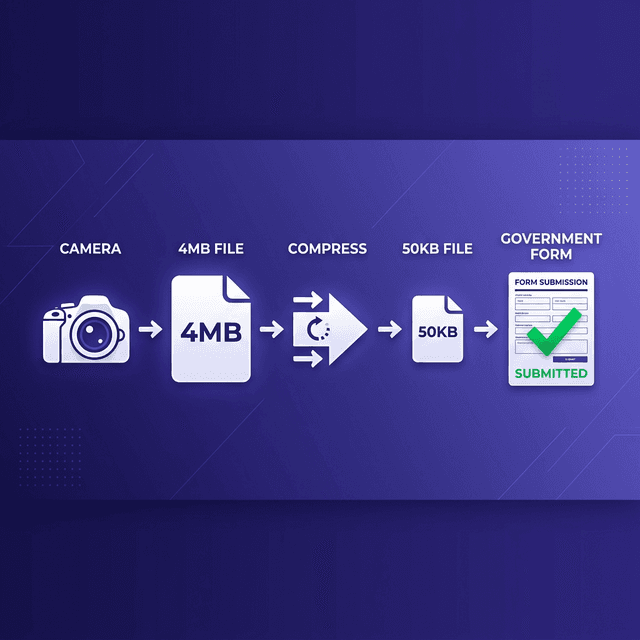
By now you've heard the advice: take a good photo, then compress it. But what does "good photo" actually mean when your goal is a 30 KB final file? What specific choices do you make at each step?
This guide gives you expert-level tips to get the absolute best 30 KB results every time.
Tip 1: Always Use the Rear Camera
Your phone's front-facing camera (the selfie camera) is almost always lower resolution than the rear camera. On a mid-range Android phone:
- Front camera: 8-16 megapixels
- Rear camera: 48-108 megapixels
The rear camera captures 3-6 times more detail. When you compress a 50 MB rear camera photo to 30 KB, you have vastly more original data to work with than a 12 MB front camera photo.
Rule: Always use the rear camera for photos that will be compressed to small sizes. Use a timer or ask a friend to take the photo.
Tip 2: Natural Light Is Always Better Than Flash
This tip is mentioned repeatedly in photography guides — and for good reason. Here's the specific science of why it matters for photo compression:
Flash photography creates two problems:
- Hot spots: Flash creates bright spots on your face (especially on foreheads and cheeks) where skin looks unnaturally white. These bright spots lose all texture information in compression.
- Deep shadows: Flash creates uneven lighting with dark shadows that look worse when compressed.
Natural light advantages:
- Even illumination across the face
- True color rendering (skin tones look natural)
- No artificial hot spots
How to set up natural light at home:
- Find a north-facing or east-facing window
- Stand about 1 meter from the window
- Face the window (the light should fall on your face, not behind it)
- The best time: mid-morning (9-11 AM) when daylight is bright but indirect
Tip 3: Shoot in JPG, Not PNG or HEIC
Modern smartphones save photos in different formats:
- JPG (JPEG): Standard photo format, excellent for compressing to small sizes
- PNG: Better for graphics with solid colors, but very large file sizes for photos
- HEIC (High Efficiency Image Container): Apple's newer format — smaller originals but requires conversion
Set your camera to save in JPG:
- Android: Camera → Settings → File format → choose JPEG
- iPhone: Settings → Camera → Formats → choose "Most Compatible" (saves as HEIC) or keep HEIC and let our tool convert during compression
Our compression tool automatically converts any format to JPG in the output. But starting with JPG speeds up the process and can give slightly better quality at very small target sizes.
Tip 4: Get the Background 100% White — Not Cream, Not Grey
Government portals that check background color during upload rejection look for specific RGB values. A slightly off-white background (like cream or ivory walls) can cause automated rejection.
How to get a truly white background at home:
- Use a white bedsheet or a large white chart paper taped to the wall
- OR stand in front of a white refrigerator door or white-painted wall
- Check by taking a test photo and zooming in to the background area — it should look completely bright white with no shadow
Avoid:
- Natural stone walls (grey/beige tones)
- Yellow-cream colored paint
- Blue or green walls
- Cluttered backgrounds you tried to blur
Tip 5: Crop Smart Before Compressing
For passport photos, crop to the correct ratio BEFORE compression:
- Standard ratio: 4:5 (height:width) — e.g., 200×250 pixels or 400×500 pixels
- Some portals: 1:1 square crop
For signature photos, crop as tight as possible (just the signature + thin border).
Cropping before compression ensures:
- The maximum number of your target 30 KB goes toward the important content (your face/signature)
- Less "wasted" KB on background or empty space
Tip 6: Check the File, Not the Portal Preview
After uploading to a portal, many candidates panic when the small preview thumbnail looks blurry or pixelated. But this is just how all thumbnails look at 50-100 pixel sizes.
What matters is the actual file quality — which you should have already verified before uploading.
The correct verification process:
- After downloading the compressed 30 KB file, open it on your phone
- Zoom to 100% or 150% zoom
- Check: Are features clear? Is signature dark?
- If yes → upload confidently, regardless of how the portal preview looks
Tip 7: Compress Once From the Original
Never compress a photo, then compress the compressed version again. This is called double compression and significantly degrades quality.
If your first compression result at 30 KB doesn't look right, go back to the original high-resolution photo and compress again (possibly adjusting your crop or trying a slightly higher pixel resolution starting point).
Quick Reference: Achieving Best 30 KB Results
| Factor | Recommended | |---|---| | Camera | Rear camera (not selfie) | | Lighting | Natural window light (no flash) | | Background | True white surface | | Format | JPG (camera setting) | | Cropping | Do before compression | | Compression | One time from original only | | Verification | Open file at full zoom |
Conclusion
Getting excellent 30 KB results is about having the right process, not about magic settings. Start with the best possible original, compress once from that original using SmartToolsWala's 30 KB tool, and verify before uploading.
Following these tips consistently means you'll never have to deal with blurry, low-quality photos on government portals again!
🎯 Free ToolCompress Image to 30KB – Exact Size!Open Tool →Written by
Abhishek Baghel
Related Articles
Instagram Bio: 3000+ Best, Stylish, Attitude & VIP Bios for Boys & Girls (2026)
Looking for the ultimate list of Instagram bios? Get 3000+ copy-paste Instagram bios including attitude, classy, stylish font, simple, VIP bios for boys and girls.
20 Gemini AI Photo Prompts Copy & Paste for Stunning Images (2026)
Get 20+ viral, hyper-realistic, and stunning Gemini AI photo generation prompts to copy and paste. Elevate your AI art game instantly.
Instagram Bio for Boys: 500+ Stylish, Attitude & Cool Bio Ideas for 2026
Discover 500+ Instagram Bio For Boys including attitude, stylish, VIP, cool, trending and emoji bios. Copy and use instantly.