
Reduce Photo Size from MB to KB Without Losing Quality (The Secret Method)
Is it possible to shrink a 5 MB picture down to just 50 KB while keeping it crystal clear? Yes! Learn exactly how image compression works and how to do it safely.
Have you ever tried to wash a beautiful, bright red shirt in a washing machine with hot water, and when you took it out, it was ruined? The shirt shrank in size, but the beautiful red color faded into an ugly pink. You successfully made the shirt smaller, but you lost its quality!
When we talk about computer pictures, people have the exact same fear. Everyone knows how to make a picture file smaller. But the biggest question people ask is: "Can I reduce photo size from MB to KB without losing quality?"
If you try to compress a photo using cheap, bad software, your picture will look just like that ruined red shirt. Your face will become blurry, the colors will look pale, and the text on your ID card will become impossible to read.
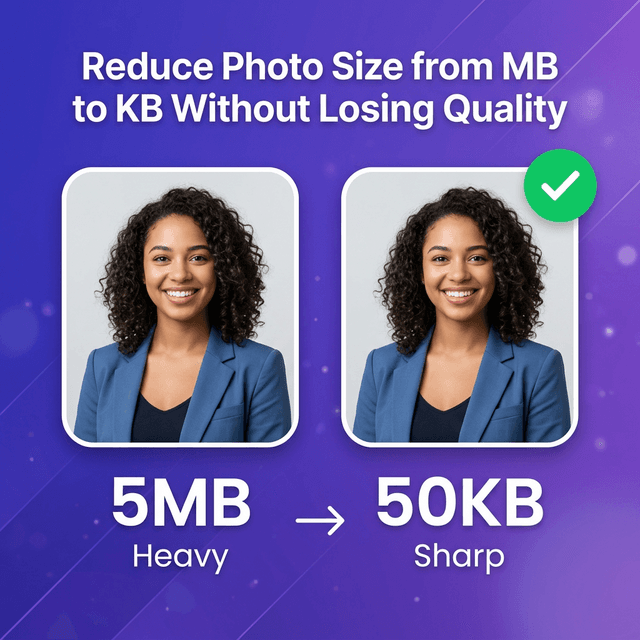
But if you use the secret methods we are going to teach you today, you can shrink a massive 5 MB photograph down to a tiny 50 KB file, and to your human eye, the picture will look 100% identical and perfect! Let's explore how this magic works.
Understanding the "Weight" of a Photo
First, let's remember what makes a photo heavy in the first place.
Everything you do on the internet uses "Bytes."
- A Kilobyte (KB) is very small and light.
- A Megabyte (MB) is very big and heavy. One MB is equal to more than 1,000 KB!
When you hold up your modern smartphone and take a picture of your smiling face, the phone's camera acts like a greedy monster. It absorbs millions of tiny colored light dots, called "Pixels". Because your phone is so powerful, it saves over 12 million tiny dots for a single photograph. Saving 12 million dots requires an enormous amount of computer space. That is why your simple selfie becomes a massive 5 MB file.
This 5 MB file is beautiful, but it is totally useless if you want to apply for a job online. Every job portal, college admission site, and government portal has a strict red warning: "Maximum File Size Allowed: 50 KB."
To get past this error, you must reduce the file size. You have to somehow make a 5 MB file fit into a 50 KB box.
The Bad Way: Shrinking the Dimensions (Cropping)
If you hand a large 5 MB picture to someone who doesn't know about computers and tell them to "make it smaller," they will usually do the wrong thing.
They will open the picture in a basic editing app on their phone, take scissors (the crop tool), and cut the picture in half. They will chop off the background, chop off the shoulders, and just leave the nose and eyes.
Yes, chopping an image with scissors does make the file size smaller! If you cut away half the pixels, the picture loses half its weight. But this is a terrible idea for official forms. A passport photograph must show your whole head, your shoulders, and a clear background. If you chop the picture up, the website examiner will reject your application!
You cannot reduce photo size by just chopping it with scissors. You need a smarter way.
The Good Way: Smart Image Compression
The correct way to reduce photo size from MB to KB without losing quality is to use something called Compression.
Compression is a highly advanced mathematical trick. It does not use scissors to cut the edges of your photo. Instead, it acts like an incredibly smart organizer inside the picture itself.
To understand how Compression works without ruining quality, we need to learn about how the human eye works!
The Human Eye vs. The Computer
The camera on your smartphone is actually much smarter than your human eye. Imagine you take a picture of a clear blue sky. Your phone's camera sees 100 slightly different shades of blue. It sees dark blue, medium blue, light blue, and ultra-light blue. It saves every single different shade as a separate, heavy piece of data.
However, your human eye is not that strong! When you look at the sky in the photo, you do not see 100 shades of blue. You just see a plain blue sky.
The Magic of "Lossy" Compression
This is where the secret magic of compression begins. When you upload your 5 MB picture to a smart converter like SmartToolsWala, our computer recipe (algorithm) looks deeply at those 100 shades of blue.
Our computer says: "The human eye cannot see the difference between shade #24 and shade #25. They both just look like medium blue to a human. Let's merge them into one single color!"
Our software automatically scans millions of pixels in your photo, erasing invisible, useless data that your eye can't even see. It cleans up the sky, it cleans up the shadows, and it groups similar colors together tightly.
The Result? The camera's heavy data is deleted. The picture drops from an enormous 5 MB all the way down to a tiny 50 KB. But because we only erased the invisible data between the pixels, the picture looks exactly the same to you! The blue sky still looks like a blue sky. Your face is perfectly sharp. Your signature is crisp and readable.
You successfully reduced the photo size from MB to KB, and you lost absolutely zero visible quality!
Step-by-Step Guide: How to Compress Safely
You don't need to know how the math works to use it. You just need a safe tool. Here is the easiest, safest way to turn your heavy MB photo into a light KB photo in less than a minute.
Step 1: Get Your Heavy Photo Ready Take your photograph standing against a plain, well-lit wall. If it is an ID card, place the ID card on a flat table under a bright light and take the picture directly from above. Do not use dark, shadowy rooms. A clear photo compresses much better than a dark, blurry one!
Step 2: Know Your Form's Rules Read the website you are applying to. Do they want the photo under 100 KB? Under 50 KB? Under 20 KB? Write the rule down on a piece of paper. You must know your target goal!
Step 3: Open SmartToolsWala Open your phone's internet browser (like Chrome or Safari) and go to our website. We created a free tool exactly for this purpose. Find the link that matches your goal, like Compress Image to 50KB.
Step 4: Upload and Wait One Second Click the giant upload button and find your heavy photo. The moment you select it, our smart compression servers take over. You will not have to do any confusing math. The tool automatically finds the best way to merge invisible pixels without ruining your face.
Step 5: Download the Magic File A second later, a green success message will appear. It will tell you the new, perfectly small KB size. Click the "Download" button.
You now have a brilliant, high-quality photograph that weighs almost nothing, safely saved on your phone!
Fixing Common Problems When Quality Drops
Sometimes, people try to compress pictures and the result does look terrible. It looks blurry, blocked, or grainy. This is called "pixelation." Why does this happen, and how can you stop it?
Problem 1: You Squeezed Too Hard!
Compression is amazing, but it has limits. If you have an incredibly detailed 10 MB photograph of a dense forest with thousands of tree leaves, and you force a converter to shrink it to an impossible 5 KB, the system will break. To reach 5 KB, the computer is forced to erase visible data, not just invisible data. It will erase the leaves and turn the trees into blurry green blobs. The Fix: Be realistic. Shrinking a heavy face photo to 50 KB is perfect. Shrinking it to 5 KB will look bad. Always stick to what the official government forms ask for!
Problem 2: You Uploaded a Blurry Photo First
Remember the saying: "Garbage in, garbage out." If your hand was shaking when you took the photo with your phone, the original 5 MB picture is already blurry! When the computer tries to compress a shaking, blurry photo, it gets very confused. The final 50 KB photo will look even worse. The Fix: Stand still! Tap the screen on your phone to focus the camera perfectly before taking the picture. Make sure the original photo is sharp as a knife.
Problem 3: You Used a Bad Website
Not all converters are created equal. Many old, outdated websites from 10 years ago use terrible, aggressive compression math. They act like cheap washing machines that ruin clothes. The Fix: Use a modern, trusted platform like SmartToolsWala. We use the latest, most advanced "Lossy" web algorithms designed specifically to protect faces and legible text on ID documents.
Why Quality Matters for Signatures and ID Cards
When we say "Without Losing Quality," we are not just talking about looking pretty. We are talking about getting your application approved.
When an examiner sits in a government office and looks at your college or job application on their computer, they check three important things:
- Can they recognize you? Your face must be bright and the edges of your facial features must be sharp so they can match you to your ID.
- Can they read your ID? If you upload a compressed Aadhaar or PAN card, the tiny 12-digit numbers printed on the card must be perfectly clear. If the compression tool blurred the numbers, your application will be instantly rejected!
- Is your signature smooth? When you sign a white piece of paper, the ink lines must look dark and smooth, not choppy or disconnected.
This is why finding a tool that safely reduces photo size from MB to KB without losing quality is arguably the most important step of applying for anything online. You must bypass the MB trap while guaranteeing the examiner can read your documents.
Is it Better to Edit on a Computer or a Phone?
A long time ago, people believed that you needed a big, expensive desktop computer (like an iMac) to edit or compress photos without losing quality. They believed smartphones were too weak.
Today, this is completely false!
With internet "Cloud Computers," your phone doesn't do the hard work. When you upload a picture using our website on your Android or iPhone, the picture goes to our giant supercomputers. Our supercomputers perform the heavy math beautifully and send the tiny KB file right back to your small phone screen.
Because of this cloud technology, the quality of compression is 100% identical whether you use an old 3G Android phone or a brand-new $2000 gaming desktop computer! The tool runs everywhere perfectly.
Summary
The great anxiety of shrinking internet files is finally over! Let's recap what we learned:
- Yes, it is beautifully possible to reduce photo size from MB to KB without losing quality.
- Never use scissors (cropping) to try and shrink a file's weight. You will ruin the required dimensions of the photograph.
- Use advanced "Compression". This brilliant math trick erases millions of useless, invisible colors that your human eye cannot even perceive.
- Always ensure your starting photograph is taken in bright light with steady hands.
- Use a trusted, modern web platform to safely handle the complex processing instantly.
The days of seeing red error messages locking you out of your important forms are gone. Now you hold the secret to fitting massive photographs into tiny digital boxes seamlessly!
✅ Free ToolCompress Image to 50KB – Free & Instant!Open Tool →Written by
Abhishek Baghel
Related Articles

Instagram Bio: 3000+ Best, Stylish, Attitude & VIP Bios for Boys & Girls (2026)
Looking for the ultimate list of Instagram bios? Get 3000+ copy-paste Instagram bios including attitude, classy, stylish font, simple, VIP bios for boys and girls.
20 Gemini AI Photo Prompts Copy & Paste for Stunning Images (2026)
Get 20+ viral, hyper-realistic, and stunning Gemini AI photo generation prompts to copy and paste. Elevate your AI art game instantly.
Instagram Bio for Boys: 500+ Stylish, Attitude & Cool Bio Ideas for 2026
Discover 500+ Instagram Bio For Boys including attitude, stylish, VIP, cool, trending and emoji bios. Copy and use instantly.