
Top Reasons Your Photo Upload Failed: The MB to KB Fix
Why does the internet keep rejecting your photo uploads? We explain the most common errors, from dimension limits to massive MB files, and show you exactly how to fix them.
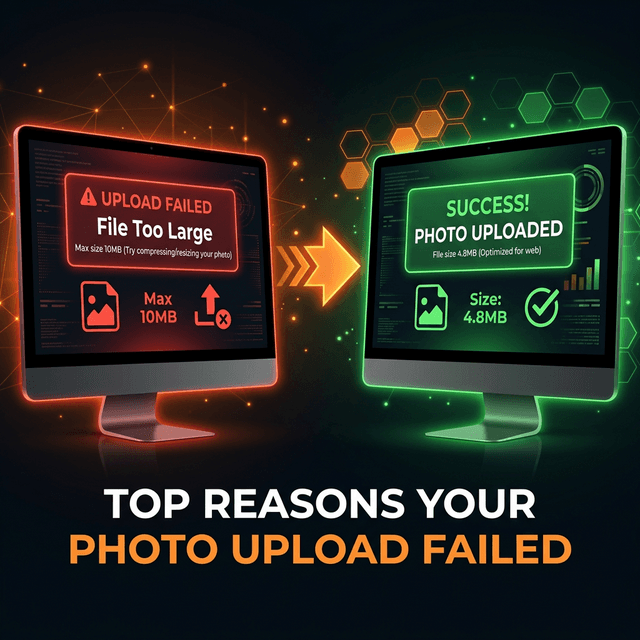
There is nothing more frustrating than spending an hour filling out a long online form, only to get stuck at the very last step. You type your name, your address, your grades, and your passwords perfectly. Then, you click the button to upload your passport photo or your signature.
The screen loads for a second, and then a scary red box appears. It says: "Upload Failed."
You try again. Failed. You try another picture. Failed!
Why is the computer being so stubborn? What did you do wrong? Don't worry! You did not break the internet. Photo upload failures are the most common problem people face when applying for jobs, creating profiles, or registering for exams online.
In this easy-to-understand guide, we are going to act like internet doctors. We will diagnose the top reasons why your photo upload failed, and more importantly, we will give you the exact medicine to cure the problem using an MB to KB converter.
Reason 1: The "File Too Large" Error (The Weight Problem)
This is the number one reason why uploads fail everywhere in the world. To understand this error, we need to talk about weight.
Imagine you go to the post office to mail a small letter. The postal worker tells you the stamp costs $1 for a letter under 50 grams. But instead of a letter, you try to put a 5 kilogram bowling ball into the mail slot! The postal worker will stop you. The system is not built to carry bowling balls for $1.
The internet works exactly the same way.
Understanding MB vs. KB
Your modern smartphone camera is amazing. It takes pictures that are so clear you can see individual hairs on your head. To save all this extreme detail, the camera creates a massive, heavy file.
- The weight of this massive file is measured in Megabytes (MB). Most phone pictures are 3 MB, 5 MB, or even 10 MB heavy! These are the "bowling balls" of the internet.
However, government portals, schools, and job websites do not want bowling balls. They only want light letters.
- These light letters are measured in Kilobytes (KB). A website will clearly state: "Maximum file size allowed: 50 KB."
Remember: 1 MB is equal to more than 1,000 KB. So, if you try to upload a 5 MB (5,000 KB) photo into a tiny 50 KB slot, the website will block you instantly and scream "File Too Large!"
The Cure: Squeezing the File
To fix this, you cannot use scissors to chop the photo in half. You must use a magic sponge to squeeze the weight out. This is called image compression.
You simply visit a safe, free website like SmartToolsWala, select the "Compress Image to 50KB" tool, and upload your heavy 5 MB photo. Our brilliant computer algorithm will erase invisible data that your eye cannot even see. In one second, your photo will drop from 5 MB down to a beautiful, light 48 KB. When you try to upload this new light photo, the website will accept it instantly!
Reason 2: The "Wrong Format" Error (The Shape Problem)
Sometimes, your file is perfectly small and light (like 30 KB), but the website still rejects it. Why? Because you have a "Shape" problem.
In the computer world, the shape of a file is called its Format. You can usually see the format at the very end of your file name, after the dot (for example, myphoto.jpg or myphoto.png). Different formats are built for different things.
The Good Shape: .JPG or .JPEG
This is the universally accepted shape for photographs. If you take a picture of a human face or a natural landscape, it should be a JPG. Every single job portal and government examiner expects to see a JPG. It is the most common and friendly format on earth.
The Weird Shapes: .PNG, .HEIC, .PDF
- .PNG: This shape is great for transparent logos or computer drawings, but it is not great for photographs. Many older government websites will reject a PNG file simply because they don't know how to read it.
- .HEIC: If you have an Apple iPhone, this is the shape your phone uses automatically! Apple invented it to save space on your phone, but sadly, almost no websites accept HEIC files yet. If you try to upload an HEIC picture to a job portal, it will fail 100% of the time.
- .PDF: This shape is for typed documents, like books or resumes. You should never upload a PDF if the website specifically asks for a "Passport Photo."
The Cure: Changing the Shape
If the website says "Only JPG files accepted," and you have an iPhone HEIC file or a heavy PNG logo, you must convert it. You can use a free online converter tool (like a HEIC to JPG converter, or a PNG to JPG converter). You upload your weird shape, and the tool hands you back a perfect, universally accepted JPG shape. Then, if the new JPG is too heavy, you compress it from MB to KB!
Reason 3: The "Invalid Dimensions" Error (The Size Problem)
Wait, didn't we just talk about size? No! We talked about weight (MB and KB). Now we need to talk about physical dimensions — how tall and wide the picture is on the screen.
Imagine buying a picture frame. The frame is exactly 4 inches wide and 6 inches tall (4x6). If you try to stuff a giant poster-sized movie advertisement into that small frame, it will crumple and fail.
Websites build digital "picture frames" for your face. These frames are measured in microscopic screen dots called Pixels (px). A government exam site might tell you:
"Photo MUST be exactly 200 pixels wide and 230 pixels tall (200x230 px)."
If you take a photo with your modern Android phone, the dimensions are huge! They are usually 3000 pixels wide and 4000 pixels tall. When you attempt to stuff a 4000-pixel giant into a tiny 230-pixel box, the system throws an "Invalid Dimensions" error.
The Cure: Resizing the Dimensions
To fix this, we actually do need to safely shrink the physical height and width of the picture. This is called Resizing. You can use an online image resizer. You simply type "Width: 200" and "Height: 230", and the computer creates a perfect tiny copy of your photo that fits flawlessly into the website's digital picture frame. (Hint: Resizing the dimensions almost always reduces the MB weight, too!)
Reason 4: The "Unreadable/Blurry" Error (The Quality Problem)
Sometimes a website won't throw an error immediately. The computer program might accept your 40 KB photo perfectly. But a week later, you receive a sad email from a human examiner saying: "Application Rejected. Document illegible."
What happened? You followed the rules! You made the file 40 KB! The problem is that you used a bad tool to squeeze the file.
When amateur users try to shrink a 5 MB photo to 40 KB, they often use cheap, outdated websites that use aggressive, destructive math. The website shreds the picture. When you download it, your face looks like it is made of Minecraft blocks (pixelated). If you uploaded a signature, the signature ink looks pale and broken.
Human examiners at government offices have a strict rule: If they cannot clearly recognize your face, or clearly read the digits on your Aadhaar card, they must reject the application.
The Cure: Using Smart Lossy Compression
To avoid this tragedy, you must reduce photo size from MB to KB without losing quality. You need a tool that uses "Smart Lossy Compression." A smart tool (like SmartToolsWala) carefully deletes the hidden color data while strictly protecting the sharp edges of your eyes, nose, and the black ink of a signature.
Always open the compressed picture and look at it closely with your own eyes before uploading it. If it looks blurry to you, it will look blurry to the examiner.
Reason 5: The "Timeout" Error (The Internet Speed Problem)
Let's imagine you ignore the rules completely. You have a massive 15 MB video-quality photograph, and the website forgot to put a limit on the file size. Wow, you got lucky, right?
You click "Upload." The spinning circle of doom appears on your screen. It spins for one minute. It spins for two minutes. Finally, your entire internet browser crashes and says "Connection Timeout."
Uploading a massive file requires a very strong, fast 5G or Fiber internet connection. If you live in a rural area, or if you are using a basic 3G mobile data plan, a 15 MB file is simply too heavy to carry through the slow digital wires. The internet connection "gives up" halfway through the trip because it takes too long.
The Cure: Light Travel
If you use a solid MB to KB converter, you are turning a 15 MB heavy boulder into a 50 KB feather. A feather can travel effortlessly on any internet connection. Even if you only have one single bar of 2G signal, a tiny 50 KB file will upload to a website in 2 or 3 seconds flat, avoiding any timeout crashes!
A Quick Checklist to Guarantee Success
To make sure you never see a terrifying "Upload Failed" error box ever again, write down this 4-step checklist and keep it near your computer:
- Check the Weight Limits: Read the form instructions. Does it ask for 100 KB? 50 KB? 20 KB? Use an online compressor to hit that exact target.
- Check the Shape (Format): Is your photo a weird iPhone HEIC or a heavy PNG logo? Make sure you always convert the picture into a universally loved .JPG format before trying to upload.
- Check the Dimensions: If the website gives you strict Height and Width limits in "Pixels" (px), do not ignore them. Use a Resizer tool to match the exact mathematical box.
- Check the Quality with Your Own Eyes: Never blindly upload a picture. Open the final 50 KB file and look at your face or signature. Make sure it is bright, sharp, and easy to read.
Conclusion
Computers are not smart; they are just strict rule-followers. When a website rejects your photograph, it is not angry at you. The website is simply following a strict math rule programmed by its creator.
By understanding the difference between weight (MB vs KB), dimensions (Pixels), and shape (JPG vs PNG), you now have the power to master any digital form on the internet. Do not let a bad upload stand in the way of your dream job, your travel passport, or your college exams. Squeeze the weight, fix the shape, check the quality, and press the upload button with total confidence!
✅ Free ToolCompress Image to 50KB – Free & Instant!Open Tool →Written by
Abhishek Baghel
Related Articles

Instagram Bio: 3000+ Best, Stylish, Attitude & VIP Bios for Boys & Girls (2026)
Looking for the ultimate list of Instagram bios? Get 3000+ copy-paste Instagram bios including attitude, classy, stylish font, simple, VIP bios for boys and girls.

20 Gemini AI Photo Prompts Copy & Paste for Stunning Images (2026)
Get 20+ viral, hyper-realistic, and stunning Gemini AI photo generation prompts to copy and paste. Elevate your AI art game instantly.
Instagram Bio for Boys: 500+ Stylish, Attitude & Cool Bio Ideas for 2026
Discover 500+ Instagram Bio For Boys including attitude, stylish, VIP, cool, trending and emoji bios. Copy and use instantly.